

Birdeye MCP Server is currently in Beta. It is under active development, so tool names, response shapes, and rate limits may change. Share feedback through bds.support@birdeye.so.
Prerequisites
1
Install Node.js
Node.js 18 or higher is required if you are using Claude Desktop. Download it from nodejs.org.
2
Get your Birdeye API key
- Log in to bds.birdeye.so
- Go to Usages then Security
- Click Generate Authentication key and copy the API key
With your API key in hand, the next step is picking which server to connect to.
Which server to use
Public server (keyless)
The fastest way to get started. Add this to your client’s MCP config file (for exampleclaude_desktop_config.json):
Authenticated server
Add your API key to the same config:Connect with Claude
- Claude Desktop (Free)
- Claude Pro
- Locate
claude_desktop_config.json. See the MCP quickstart guide to find it on your system. - Add one of the server configs above.
- Restart Claude Desktop for the change to take effect.
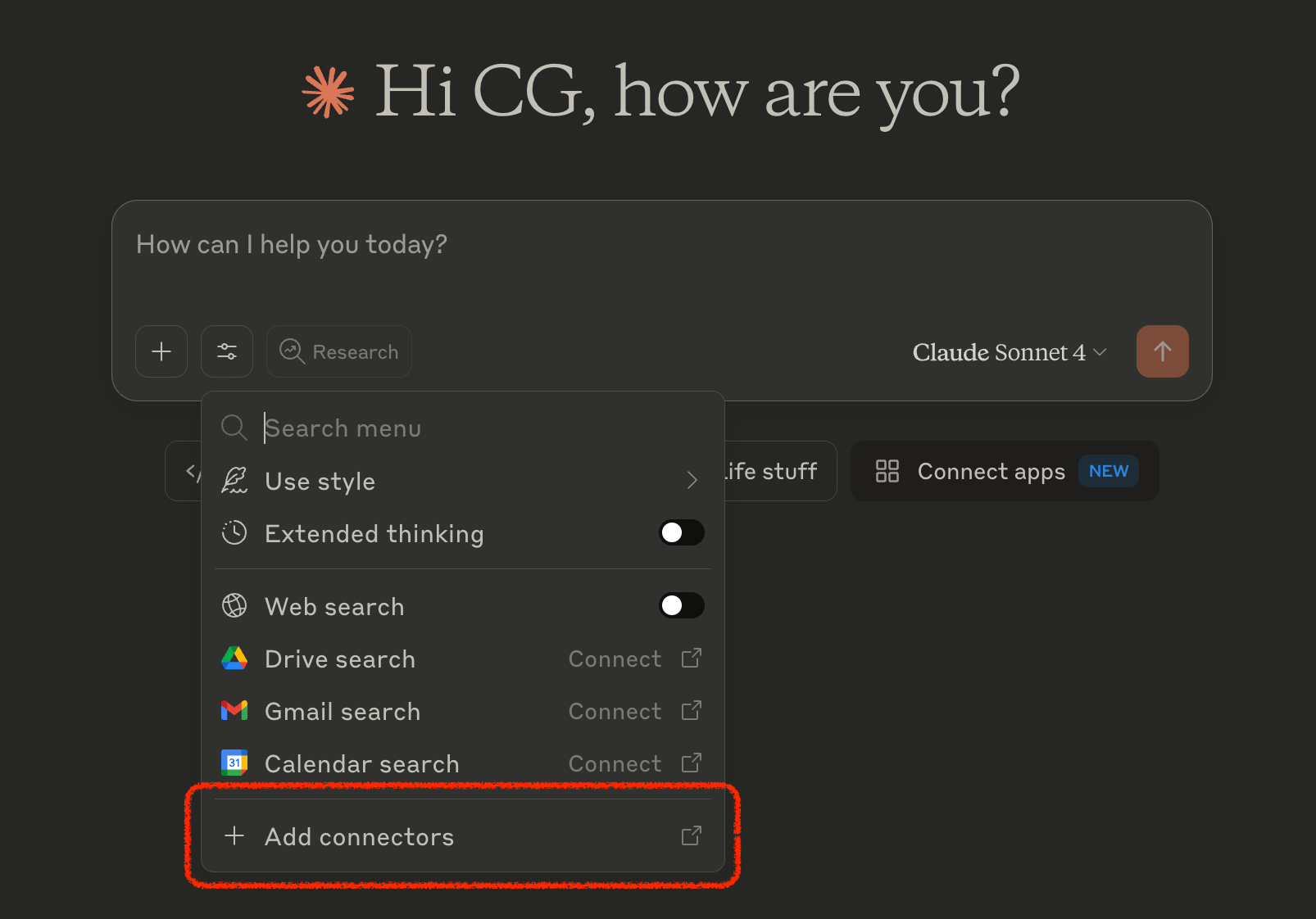
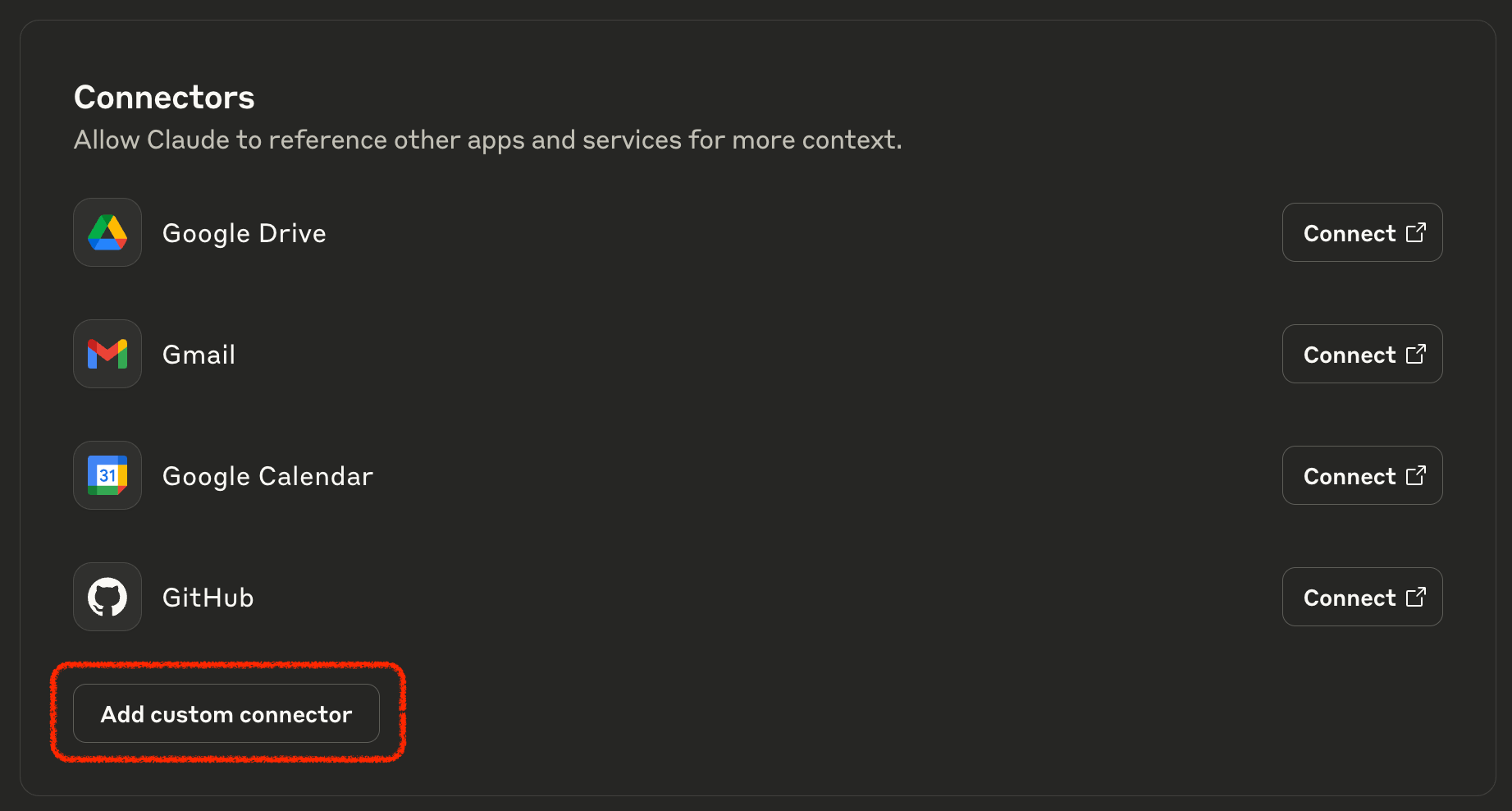
Connect with other AI tools
Birdeye MCP works with any MCP compatible client. Each tab below shows the config for a specific tool; the server args are the same as the authenticated config above.- Claude Code
- Cursor
- Windsurf
- GitHub Copilot (VS Code)
- Gemini CLI
- OpenAI Codex CLI
- Cline
- Roo Code
- Amazon Q Developer
- JetBrains IDEs
- Continue
- Zed
Add via the CLI:Or add directly to your project’s
.mcp.json:command, args, and header pattern shown above.
Convert MCP into a skill (OpenClaw)
If your runtime is OpenClaw or Hermes rather than a standard MCP client, you can convert the Birdeye MCP server into a skill definition instead of connecting to it directly.1
Install Node.js and npm
sudo apt install -y nodejs npm on Ubuntu or Debian, brew install node on macOS, or the installer from nodejs.org on Windows.2
Run the conversion
3
Complete the interactive setup
If prompted for a Bearer token, any placeholder value works. When asked to choose a target runtime, select either
openclaw or hermes.birdeye MCP server that your selected runtime can use directly.
Next steps
Tool Catalog
See every endpoint exposed through Birdeye MCP, organized by task.
x402 and Agentic Payments
Skip the API key entirely and let your agent pay per request.